> ## Documentation Index
> Fetch the complete documentation index at: https://docs.slng.ai/llms.txt
> Use this file to discover all available pages before exploring further.
# Using regions in the services
> Pick a region when calling SLNG services.
You pick a region per service. It shows up in one of two places: the base URL you
call, or the region you set when you create an agent. See the
[regions map](/guides/regions/regions-map) for every region and its base URL.
## How to choose
Two things drive the choice:
* **Latency.** Pick the region closest to your callers. Region sets the latency
floor for every turn, and a distant region adds hundreds of milliseconds to each
round trip.
* **Data residency.** If a jurisdiction requires your data to stay inside its
borders, pick that region instead.
Requests are not routed between regions, so use the same region for speech to
text and text to speech in one turn.
## Text to speech and speech to text
The region is in the base URL. Call the regional host instead of `api.slng.ai`.
For example, send the request to `eu-west.api.slng.ai` to run it in that region.
The path and body stay the same.
```bash highlight={1} theme={null}
curl https://eu-west.api.slng.ai/v1/tts/slng/deepgram/aura:2-en \
-H "Authorization: Bearer $SLNG_API_KEY" \
-H "Content-Type: application/json" \
-d '{
"model": "aura-2-thalia-en",
"text": "Hello from sunny Barcelona!"
}' \
--output hello.wav
```
Speech to text uses the same host with the `/v1/stt/...` path. You can use any
model available in that region. See the [regions map](/guides/regions/regions-map)
for every region's base URL.
## Context Router
The region is part of the Context Router base URL. Use the regional endpoint in your OpenAI-compatible client or agent integration. See the [regions map](/guides/regions/regions-map) and [Context Router API reference](/api-reference/context-router/chat-completions) for the available server URLs and [Custom LLM](/guides/integrate/custom) for the integration setup.
## Agents
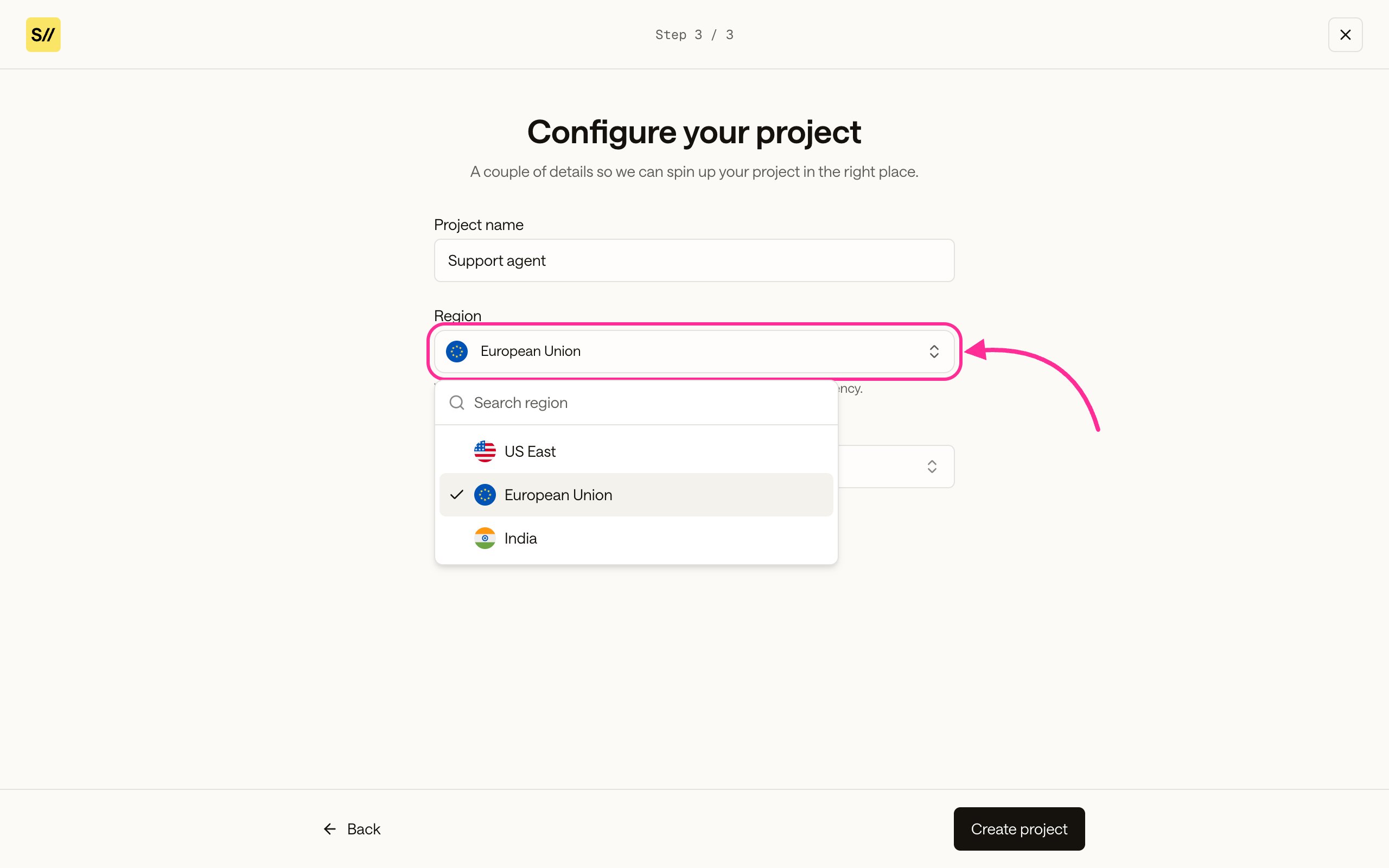
An agent does not take a base URL. You set its region once, when you create the
agent, and it stays there. The region also decides which models the agent can use:
only the models available in that region show up.
On the **Configure your project** step, open the **Region** dropdown and pick a
region.
 Set the `region` field in the create body. See the
[regions map](/guides/regions/regions-map) for the values you can use.
```bash theme={null}
curl -X POST https://api.agents.slng.ai/v1/agents \
-H "Authorization: Bearer $SLNG_API_KEY" \
-H "Content-Type: application/json" \
-d @agent.json
```
```json agent.json highlight={3} theme={null}
{
"name": "Support agent",
"region": "eu-central",
"language": "en",
"system_prompt": "You are a support agent for Wayne Enterprises.",
"greeting": "Hi, how can I help you today?",
"models": {
"stt": "deepgram/nova:3",
"llm": "bedrock-mantle/nvidia.nemotron-super-3-120b:latest",
"tts": "slng/fish/tts:s2.1-pro",
"tts_voice": "16cabdb7f8d240569aff36c9e480d783"
}
}
```
See [Create an agent](/guides/get-started/create-a-project/create-agent) for the
rest of the create flow.
## Best option
Default to the region closest to your users. Latency is the biggest lever you
have on a live call. Switch to a specific region only when data residency
requires it. Whichever you pick, use it across every service so a turn stays in
one place.
## Next steps
* [Create an agent](/guides/get-started/create-a-project/create-agent#name-the-project-and-choose-a-region)
to set a region when creating an agent.
* [Regions map](/guides/regions/regions-map) for every region and its base URL.
* [Custom LLM](/guides/integrate/custom) to configure the router in a supported
agent integration.
* [Integrating the context router](/guides/execution-layer/llm/context-router) for
how routing works with your keys or SLNG-hosted models.
Set the `region` field in the create body. See the
[regions map](/guides/regions/regions-map) for the values you can use.
```bash theme={null}
curl -X POST https://api.agents.slng.ai/v1/agents \
-H "Authorization: Bearer $SLNG_API_KEY" \
-H "Content-Type: application/json" \
-d @agent.json
```
```json agent.json highlight={3} theme={null}
{
"name": "Support agent",
"region": "eu-central",
"language": "en",
"system_prompt": "You are a support agent for Wayne Enterprises.",
"greeting": "Hi, how can I help you today?",
"models": {
"stt": "deepgram/nova:3",
"llm": "bedrock-mantle/nvidia.nemotron-super-3-120b:latest",
"tts": "slng/fish/tts:s2.1-pro",
"tts_voice": "16cabdb7f8d240569aff36c9e480d783"
}
}
```
See [Create an agent](/guides/get-started/create-a-project/create-agent) for the
rest of the create flow.
## Best option
Default to the region closest to your users. Latency is the biggest lever you
have on a live call. Switch to a specific region only when data residency
requires it. Whichever you pick, use it across every service so a turn stays in
one place.
## Next steps
* [Create an agent](/guides/get-started/create-a-project/create-agent#name-the-project-and-choose-a-region)
to set a region when creating an agent.
* [Regions map](/guides/regions/regions-map) for every region and its base URL.
* [Custom LLM](/guides/integrate/custom) to configure the router in a supported
agent integration.
* [Integrating the context router](/guides/execution-layer/llm/context-router) for
how routing works with your keys or SLNG-hosted models.